QuickFind
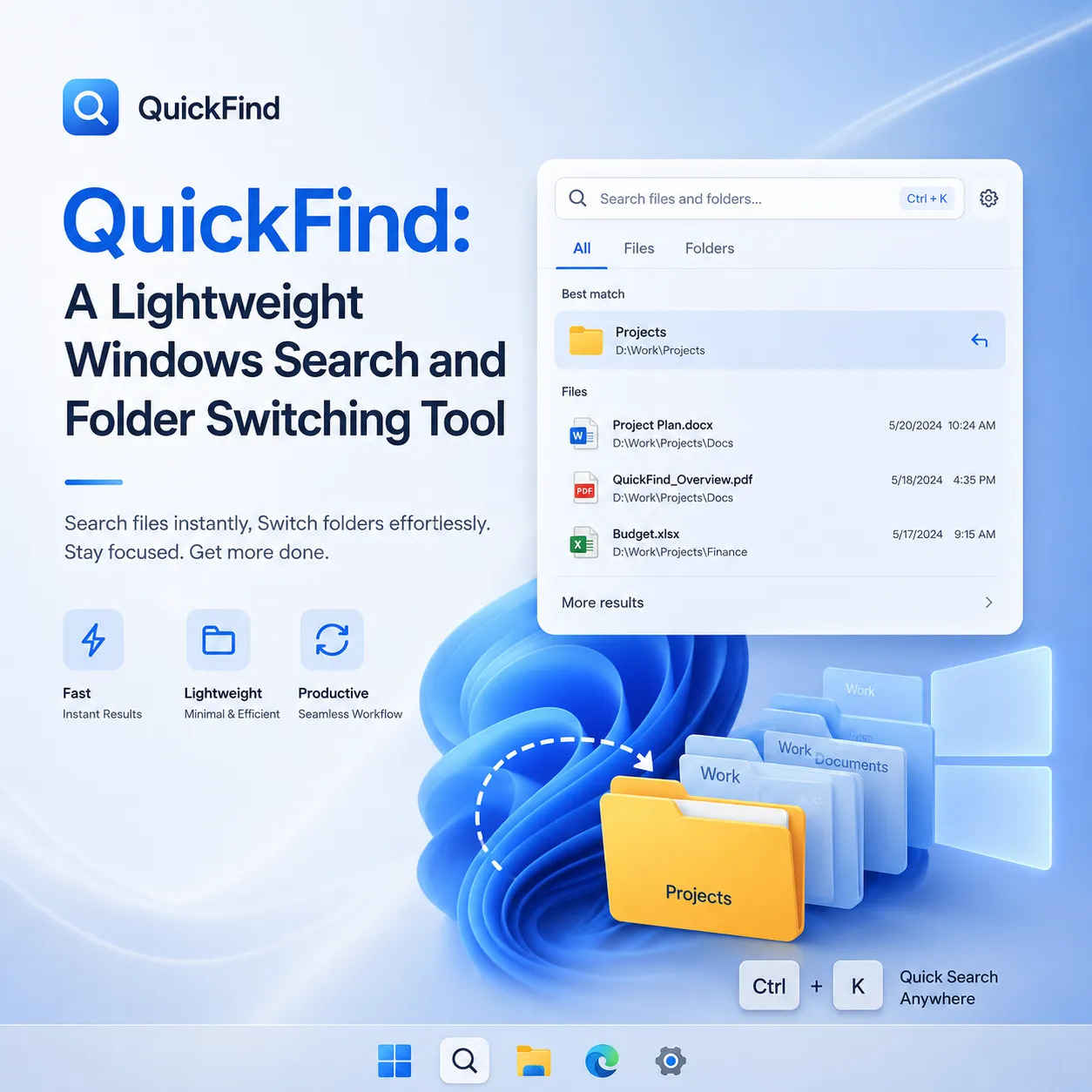
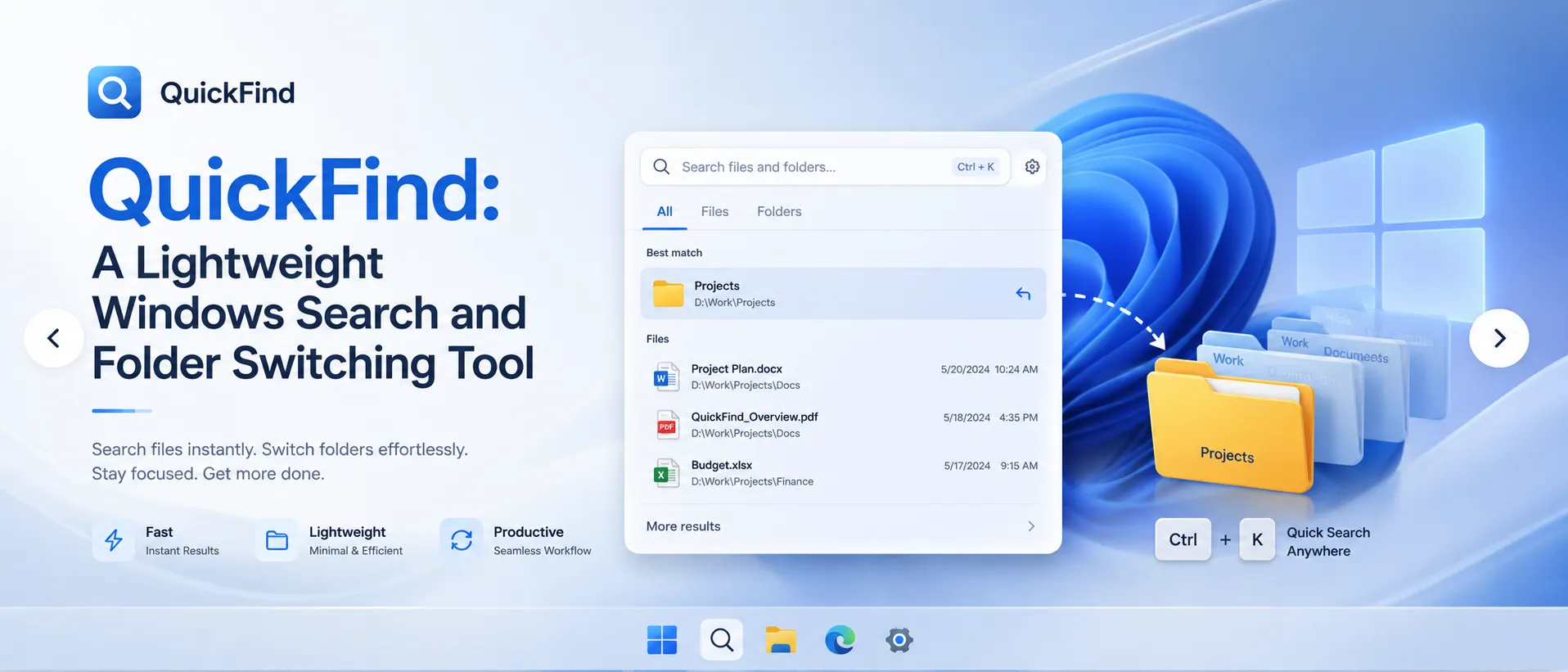
QuickFind is a lightweight Windows tool for file search and fast folder switching. It combines Everything-powered search with Listary-style directory navigation in a compact WPF interface.
Main Features
- Double-tap
Ctrlto open the search box and focus it automatically. - Clears the previous query whenever the search window is opened.
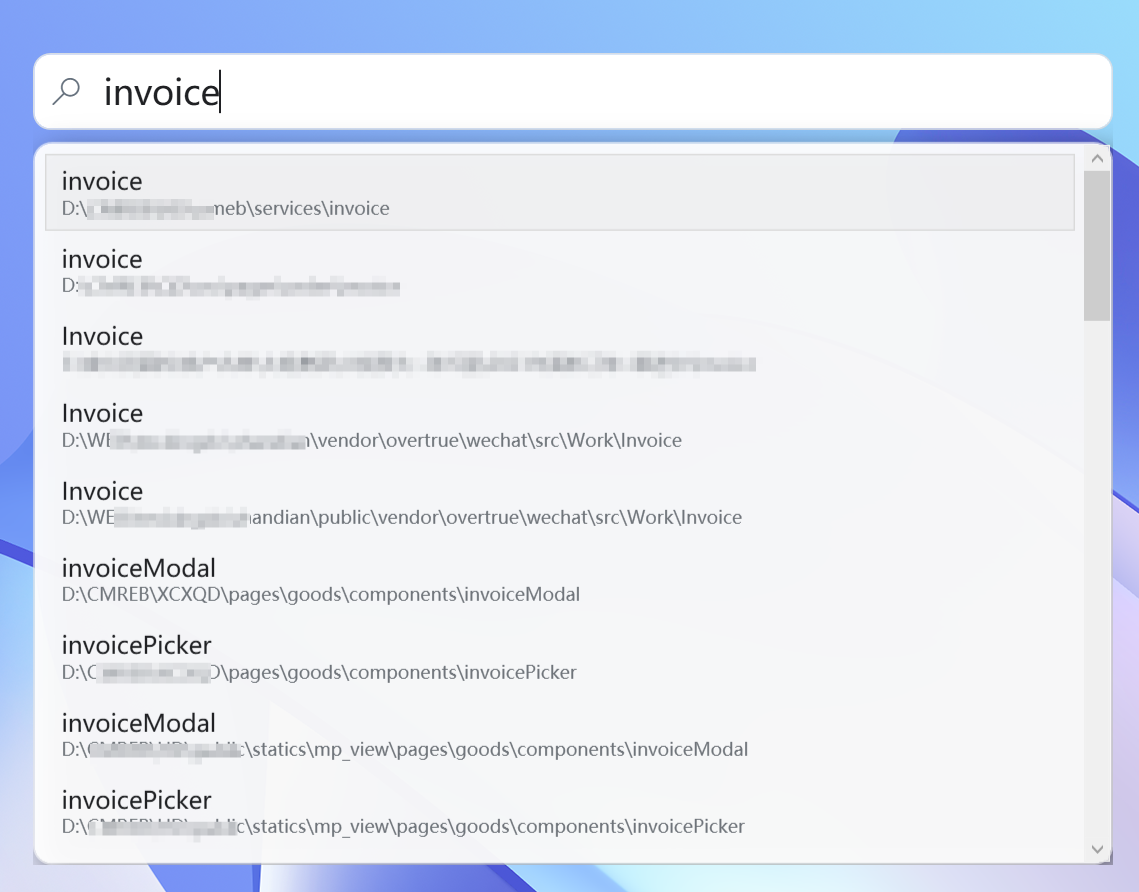
- Searches files and folders in real time using Everything.
- Gives higher priority to exact-name and prefix matches.
- Lowers the ranking of results from cache folders, Temp, WinSxS,
node_modules, and hash-like files. - Use
↑and↓to select a result, then pressEnterto open it. - Press
Ctrl+Enterto locate a file in File Explorer. - Enter a URL and press
Enterto open it in the default browser. - Quickly switch folders inside Windows Open and Save As dialogs.
- Shows folders currently open in File Explorer and lets you jump to them with one click.
- Preserves the existing filename when switching directories in a Save As dialog.
- Automatically hides when you click outside the search window.
- Uses a clean light interface with rounded corners and transparency.
- The tray menu provides quick access to QuickFind, startup settings, and exit.
- Exiting QuickFind also closes the Everything UI process started by the application.
How It Works
QuickFind is built with C#, .NET 8, and WPF.
File search is handled through Everything64.dll, which communicates with Everything for fast search results. Everything runs in the background without showing its main window or tray icon. File indexing is handled by the Everything Service, so QuickFind itself can run with standard user permissions.
The global double-Ctrl shortcut is detected with a Windows low-level keyboard hook. When the search window appears, QuickFind actively takes keyboard focus so input does not accidentally go to the desktop or another application.
Folder switching inside Windows Open and Save As dialogs is implemented with UI Automation. Before changing directories, QuickFind reads the current filename, switches to the target folder, and then restores the filename.
The “Start with Windows” option uses the current user’s Windows Registry startup entry and does not require administrator privileges.
How to Use
- Extract the QuickFind archive.
- Run
QuickFind.exe. - If the Everything Service is not installed, the first launch may require a one-time UAC prompt.
- Press
Ctrltwice in quick succession to open the search box. - Enter a filename, folder name, or URL.
- Use
↑and↓to select a result, then pressEnterto open it. - Right-click the tray icon to open QuickFind, enable startup with Windows, or exit the application.
QuickFind is not intended to replace File Explorer or Everything. Instead, it brings a few frequently used actions into one search box that is always close at hand: finding files, opening URLs, and quickly switching directories in Windows Open and Save As dialogs.